



Watching Netflix on Apple CarPlay is one of the most common requests among users who want to transform their infotainment system into a complete multimedia hub. While CarPlay is designed to ensure safety and convenience while driving, there are safe methods that allow you to access Netflix and other streaming platforms without compromising system integrity. In the following lines of this article, we delve into available solutions, such as no-jailbreak options, to enjoy your content directly in your car.
What is Apple CarPlay?
If you're wondering what CarPlay is, you should know that Apple CarPlay is an integration system developed by Apple that allows you to connect your iPhone to your car's infotainment system, transforming the vehicle's screen into an extension of your smartphone. Its primary goal is to enhance the driving experience by offering an intuitive interface and voice commands via Siri. CarPlay supports several essential features, such as:
● Navigation: Use apps like Apple Maps, Google Maps, or Waze to get real-time directions.
● Calls and messages: Make calls or send messages safely using voice commands.
● Music: Access platforms like Apple Music, Spotify, and other audio streaming apps.
Thanks to these features, Apple CarPlay offers a connected and safe experience, limiting distractions and improving convenience during travel. However, the lack of official support for video streaming, such as watching Netflix on Android Auto, represents a limitation for those who desire a complete multimedia solution.
Why can't you watch Netflix on Apple CarPlay?

Watching Netflix on Apple CarPlay or other video content is not officially allowed for safety reasons. Apple designed CarPlay with a clear goal: to reduce distractions while driving and improve road safety. For this reason, supported applications focus on essential features such as navigation, calls, messages, and music, excluding video streaming platforms like Netflix and YouTube.
International road safety regulations explicitly prohibit watching videos while driving, and Apple complies with these regulations by limiting access to visual content not relevant to safety or communication.
Despite this, many users seek alternative solutions to watch Netflix on CarPlay without jailbreak, such as mirroring devices or plug-and-play tools. It is important to remember that these methods must be used responsibly, avoiding distractions while driving and ensuring safety for all vehicle occupants.
3 ways to watch Netflix on Apple CarPlay
Method 1: Use Carbridge to play Netflix on Apple CarPlay
CarBridge is a powerful tool that allows you to use unsupported applications on Apple CarPlay, including Netflix Android Auto. CarBridge removes the restrictions imposed by Apple, allowing you to run apps like Netflix on CarPlay without limitations. However, to use CarBridge, you need to jailbreak your device, a process that unlocks the limitations of the iOS operating system.
First, jailbreak using tools like Checkra1n or Unc0ver. After completing this step, access Cydia or Sileo, the jailbreak app marketplace, and search for CarBridge, installing it by following the instructions.
Then, open CarBridge and select Netflix from the available apps after configuration. Customize the settings according to your preferences, ensuring Netflix is visible. Now, all you have to do is connect a USB cable or use a wireless connection to link your iPhone to your car's CarPlay system and learn how to watch YouTube on CarPlay.
Using video streaming apps like Netflix on CarPlay while driving is prohibited for safety reasons. It is recommended to use these features only when the vehicle is stationary.
Method 2: Use Letsview to play Netflix on Apple CarPlay
If you are looking for a way to watch Netflix on CarPlay without jailbreak, LetsView is a simple and effective solution. LetsView is a wireless mirroring software that allows you to cast your iPhone screen to the CarPlay system, enabling you to watch Netflix on Apple CarPlay without modifying your phone's operating system.
To access videos on CarPlay without jailbreak, you will need to install LetsView on your iPhone and ensure that your device and CarPlay system are connected to the WiFi network. Then, open the LetsView app on your phone and select the mirroring option.
Once mirroring is configured, open the Netflix app on your phone, and the content will be streamed directly to your CarPlay screen. Use your iPhone to select and control Netflix content on Android Auto or CarPlay.
Method 3: Use the Ottocast CarPlay AI Box to watch Netflix
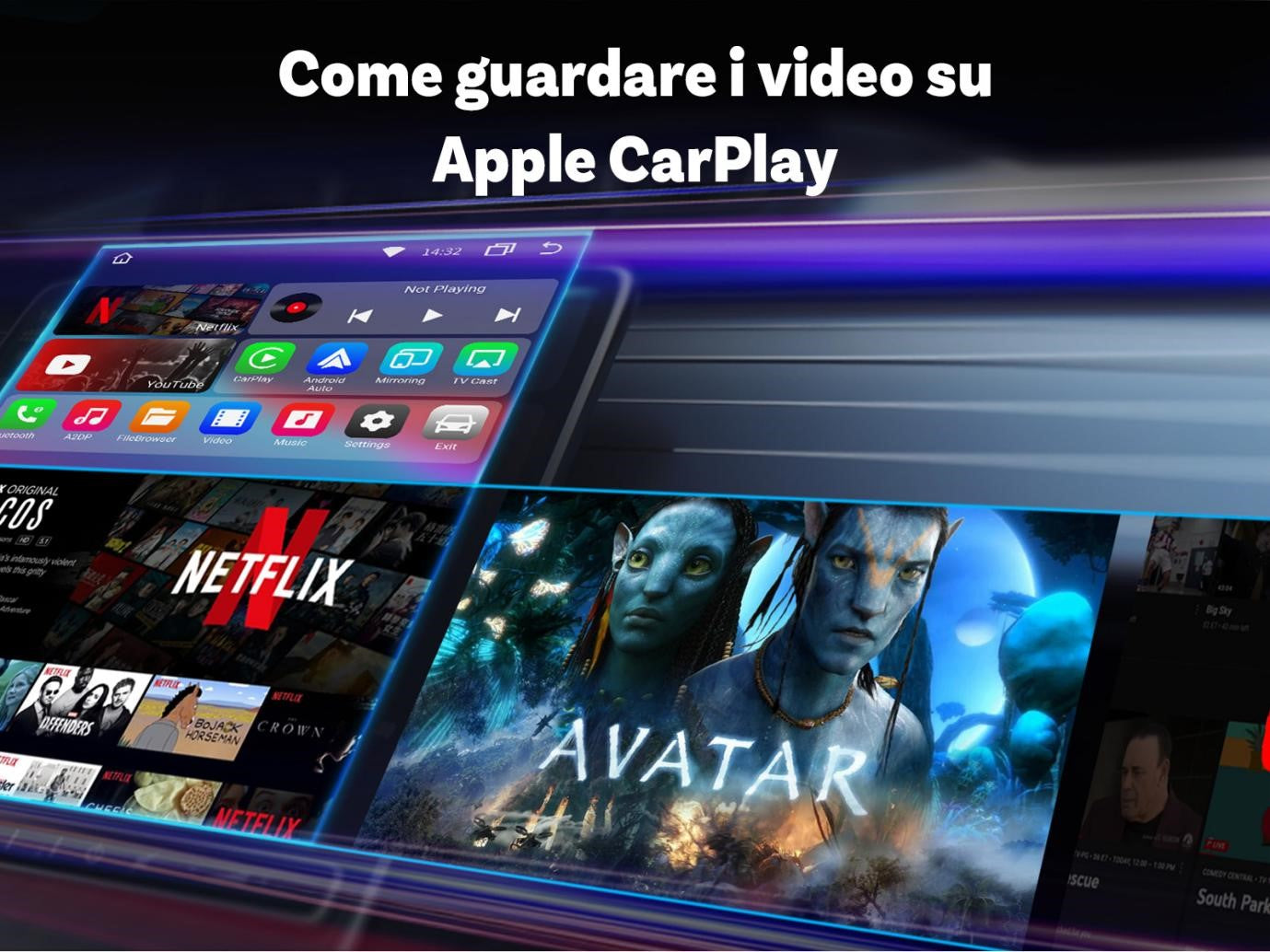
The Ottocast CarPlay AI Box represents one of the most practical and innovative solutions for accessing Netflix on CarPlay without jailbreak. This plug-and-play device eliminates any compatibility issues, allowing you to watch Netflix on Apple CarPlay and use other multimedia platforms like YouTube and Spotify easily and intuitively.
OttoAibox P3 CarPlay AI Box

The OttoAibox P3 CarPlay AI Box is designed to be compatible with most vehicles equipped with Apple CarPlay and Android Auto. With pre-installed Android Auto Netflix and YouTube, it offers a seamless and uninterrupted experience.
All you need to do is connect the OttoAibox P3 to the CarPlay system via USB cable or Bluetooth and, after configuring it, access the CarPlay screen with Netflix. With 128GB of expandable memory, dual-band WiFi, and Bluetooth 5.0, the OttoAibox P3 ensures a smooth streaming experience and high performance.
Ottocast® i3 AI Box for BMW

Specifically designed for BMW vehicles with iDrive systems (6, 7, 8, and 9), the Ottocast® i3 AI Box offers advanced features such as split-screen, support for streaming apps, and Google Play Store.
With 64GB of expandable internal memory, a Qualcomm Snapdragon 6125 processor, and support for Nano SIM cards, this device is a premium solution for BMW drivers who want to enhance their infotainment system.
Main features of Ottocast CarPlay AI Box
The Ottocast CarPlay AI Box is available for vehicles with CarPlay, and there are specific models for BMW iDrive systems. The good news is that there are pre-installed apps through which you can access Netflix, YouTube, and more without additional configurations.
The installation of the devices is immediate, simple, and non-invasive. With Ottocast devices, bringing Netflix to Android Auto or CarPlay is simple, fast, and secure. These tools are the ideal choice for those who want to transform their infotainment system into a complete multimedia experience.
Conclusion
Watching Netflix on Apple CarPlay is possible thanks to innovative solutions like CarBridge, LetsView, and Ottocast AI Box devices, each with unique features to meet the diverse needs of users. While CarBridge requires a jailbreak to unlock advanced functionalities, LetsView offers an option without invasive modifications. Ottocast devices, on the other hand, represent the simplest and safest plug-and-play solution, ensuring compatibility and high performance.
FAQ
Can I watch Netflix on CarPlay without jailbreak?
Yes, you can use tools like LetsView or Ottocast AI Box devices to watch Netflix without the need for jailbreak.
What happens if I use CarBridge to watch Netflix on CarPlay?
CarBridge requires jailbreak, which could void your device's warranty and pose security risks.
Can I use Ottocast on all vehicles with Apple CarPlay?
Yes, Ottocast devices are compatible with most vehicles equipped with Apple CarPlay, but always check compatibility with your specific model.
Do I have to pay to use LetsView with Apple CarPlay?
LetsView is free, but some advanced features may require a subscription.
Can I watch Netflix while driving on CarPlay?
No, it is dangerous and illegal to watch Netflix while driving; only use these solutions when the vehicle is stationary.

Leave a comment
This site is protected by hCaptcha and the hCaptcha Privacy Policy and Terms of Service apply.