


Long car journeys, especially on monotonous routes or during stops, can become boring for both passengers and drivers. This is where entertainment plays a fundamental role, transforming time spent in the car into a more pleasant and engaging experience.
Android Auto, thanks to its integration with the most used apps, offers tools for navigation, communication, and entertainment. But is it possible to take this experience to the next level?
One of the most common desires is to watch video content, such as Netflix, directly from the infotainment system screen. However, Android Auto, for safety reasons, does not officially support video playback while driving. In this guide, you will understand how to add applications to Android Auto, balancing safety, practicality, and compliance with regulations.

4 Methods to Watch Netflix on Android Auto
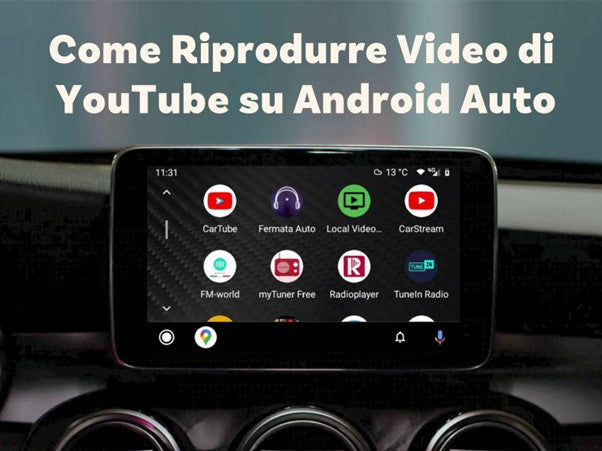
Watching Netflix on Android Auto is an interesting challenge considering that the platform does not support video playback for safety reasons. However, with the right tools, it is possible to enable this functionality and also understand how to watch YouTube on Android Auto on the go without problems.
Method 1: Using a custom ROM
If you want maximum control over your device, a custom ROM might be the solution. This approach requires deep modification of the Android operating system, unlocking its potential and allowing the installation of additional features like Android Auto Netflix.
Among the prerequisites to consider are rooting the Android device, which allows access to the administrative features of the device, and installing a ROM that supports the necessary modifications. As for the advantages and disadvantages of this approach, they are:
Advantages:
- Greater control: You can customize the Android Auto experience to include unofficially supported applications, such as Netflix Android Auto and other streaming apps.
- Ability to add new features: You can explore further options to improve the infotainment system.
Disadvantages:
- Risk of instability: Installing a custom ROM can compromise device stability.
- Loss of warranty: Software modification often voids the manufacturer's warranty.
- Complex procedure: It is not an option for inexperienced users, as it requires advanced technical knowledge.
Method 2: Third-party applications
A simpler alternative to enable Netflix on Android Auto is the use of third-party apps like AAAD (Android Auto Apps Downloader) and Screen2Auto, which will allow you to watch Netflix on Android Auto without needing many modifications. Here are the steps to complete:
- Download and install AAAD: AAAD is an app that allows you to add unofficially supported applications to Android Auto. You can find it on GitHub and install it on your device.
- Install Screen2Auto: Screen2Auto is an app that allows you to mirror your smartphone screen to Android Auto, enabling you to use Netflix, YouTube, and other streaming platforms.
- Configure permissions: during installation, you may need to enable permissions for installing apps from unknown sources. Go to Settings > Security > Unknown apps.
- Launch Netflix: once the apps are configured, connect your device to Android Auto. Launch Screen2Auto and select Netflix to start playback.

Method 3: Using an Android emulator
Another solution is to use an Android emulator, a method that allows you to use a virtual Android system, an ideal choice for those with vehicles equipped with advanced multimedia systems. Here are the steps to follow:
- Emulator installation: download a compatible Android emulator, such as Bluestacks or NoxPlayer, and install it on your car's infotainment device.
- Launch Netflix via the emulator: once installed, use the emulator to download Netflix from the Google Play Store and log in to your account to watch your favorite content.
Pros:
- Ideal for cars with advanced multimedia systems, capable of supporting the installation of additional software.
- Can be used for other applications besides Netflix, such as YouTube and IPTV.
Cons:
- Requires technical knowledge to correctly install and configure the emulator.
- Not all cars are compatible with this solution, and emulator manufacturers may not provide support for infotainment systems.
Method 4: Ottocast AI Box devices
The simplest method to watch Netflix on Android Auto is to use devices like Ottocast AI Box, tools that transform the Carplay Netflix system into a multimedia platform, allowing you to understand how to watch videos on Android Auto without modifications. Among the advantages of this approach are:
- Plug-and-play: simply connect the Ottocast AI Box to your car's CarPlay or Android Auto system and start using Netflix, YouTube, and other apps without difficulty.
- Easy to use: no need to root the device or download complex software.
- Compatibility: supports both iPhone devices (from model 5 onwards) and Android (version 6.0 or higher).
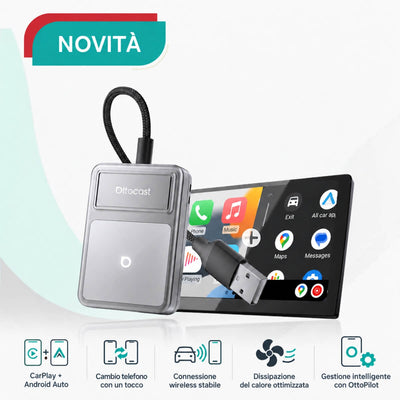
Among the recommended devices, OttoAIBox CarPlay AI Box is an innovative device that transforms your car's infotainment system into an advanced multimedia platform. With pre-installed support for streaming apps like Netflix, YouTube, Spotify, and many others, it offers a complete and seamless experience.
Compatible with any CarPlay or Android Auto system, this device sets up in just 2-3 minutes using the included USB cable. Once connected to the car's system, simply follow the quick guide to access your Netflix account and start watching your favorite content directly on the vehicle's screen.
Learn more about OttoAibox P3 CarPlay AI Box
The Ottocast® i3 AI Box is designed exclusively for BMW vehicles equipped with iDrive systems in versions 6, 7, 8, and 9. This device represents a technological evolution, offering advanced features such as split-screen mode, a Nano SIM slot, and expandable memory up to 256GB. Powered by a Qualcomm Snapdragon 6125 processor and Android 13 operating system, it ensures smooth performance and a high-quality viewing experience.
Usage is simple: connect the Ottocast i3 to your car's iDrive system and, through the configuration menu, start watching videos on Android Auto and other streaming apps.

Learn more about Ottocast® i3 AI Box for BMW
Tips and precautions
When using solutions to watch videos on Android Auto, or other streaming platforms, it is essential to follow some precautions to ensure safety and compliance with regulations.
Safety first
In-car entertainment can be considered a distraction that should never compromise road safety. Therefore, use these solutions only when the vehicle is stationary and ensure that the person watching the content is a passenger and not the driver.
Legal and warranty implications
Before installing applications like AAAD Android auto, check the regulations regarding the use of in-car entertainment systems. Also, pay attention to software modifications such as rooting the device or installing custom ROMs that could void your smartphone's warranty.
Compatibility and stability
Before adopting a solution, test its functionality to avoid problems during journeys. The applications and devices used must be compatible with the vehicle's Android Auto or CarPlay system.

Conclusions
Integrating streaming platforms like Netflix on Android Auto or CarPlay Netflix can transform long journeys into more pleasant and relaxing experiences. However, it is essential to balance the desire for entertainment with road safety.
Safety must always be the priority: use these solutions responsibly, respecting road rules and local laws. For those seeking a practical and reliable solution, Ottocast AI Box devices, such as the OttoAibox P3 and Ottocast i3 AI Box, represent an ideal option. These plug-and-play tools offer simple and secure access to Netflix, YouTube, and many other applications, without requiring complex or invasive modifications to the phone's operating system.
Frequently Asked Questions (FAQ)
What are the risks of using custom ROMs?
The use of custom ROMs can cause device instability, loss of warranty, and potential security issues if installed from unreliable sources.
Are third-party applications safe?
Many third-party applications, such as AAAD and Screen2Auto, are safe if downloaded from reliable sources. However, they may stop working with future Android Auto updates.
Are there alternatives to Netflix on Android Auto?
Yes, you can use other streaming platforms like YouTube or IPTV through compatible devices or applications like Screen2Auto.
Other solutions for watching videos in the car?
Ottocast AI Box devices, such as the OttoAibox P3 or Ottocast i3 AI Box, offer simple and reliable access to Netflix and other streaming platforms without modifying the phone.

Leave a comment
This site is protected by hCaptcha and the hCaptcha Privacy Policy and Terms of Service apply.